Publish AI product images to Shopify: extra slot vs new main, alt text, and what stays on the listing
After generation in Bulk Look AI, nothing hits your live catalog until you press Publish. Extra vs main placement, how alt text is set, and why I review every frame before I publish.
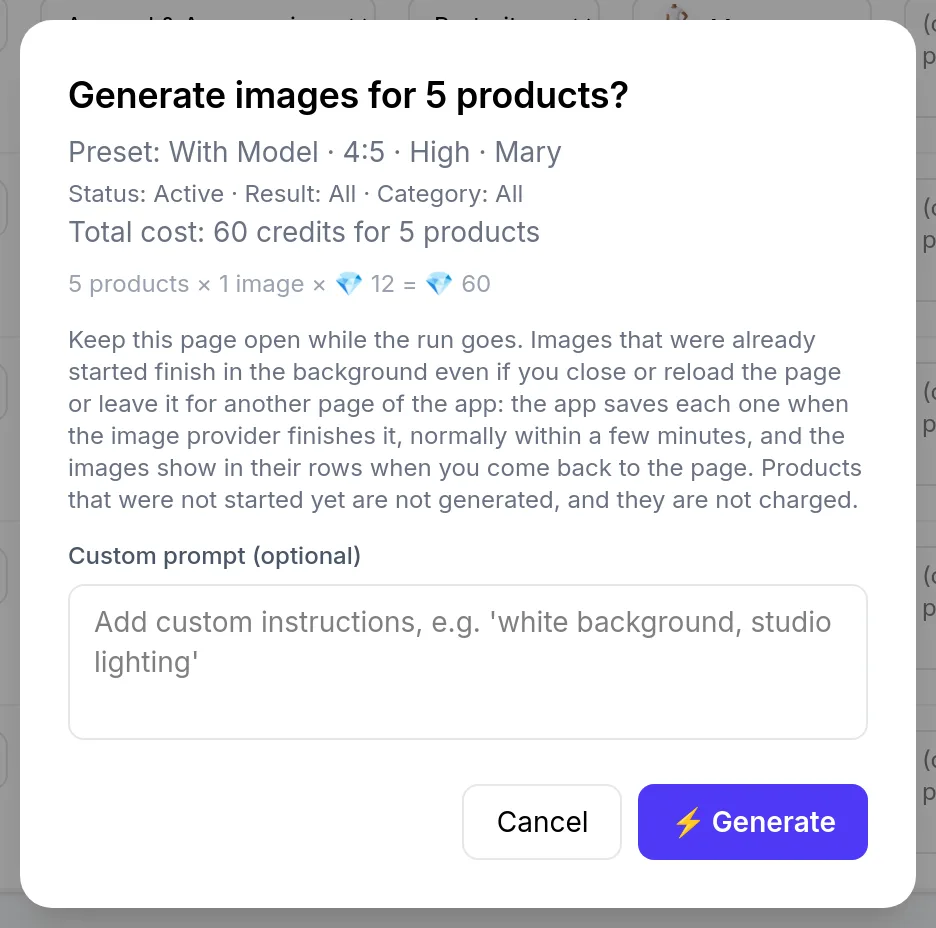
I had new shots next to my product’s main photo, and I kept asking the same thing: will Publish break my Shopify listing? With Bulk Look AI: Product Images, the live store stays untouched until you take an explicit publish step. Generation spends prepaid credits. Publishing to Shopify does not spend credits. I delete bad generations in the app gallery; Shopify does not change until I publish those files. Same topic: An AI frame set for.
Walkthrough: from review to Publish
- Review the output. Compare each generated frame to the real product. AI images can differ in shape, color, or detail. I only publish frames that match what I actually sell.
- Select products and a publish mode. In the catalog table, pick the rows whose previews you accept. You already saw the maximum generation price before the run; publish is not billed separately.
- Publish as an additional image or as the new main. Two choices:
- Additional image: the new file joins the product media gallery. Your current main photo stays first (collections, cart, and the listing hero).
- New main image: the new file moves to the first media slot. The previous main image shifts down in the order; it is not deleted. Older photos remain on the listing.
- Verify in Shopify Admin. Shopify treats the first media item as the featured (main) image. If the platform cannot reorder to first position, the new file stays an additional image. Open the product’s media and confirm order before you launch campaigns. Same topic: Essentials, Full listing, or Complete:.
What actually lands on the listing
- Product level, not a single variant. Images attach to the product record, not to one variant SKU.
- Alt text. The app builds alt text from the product title and the style preset you chose (for example Studio / Clean or Lifestyle / Cozy). You cannot edit alt text inside Bulk Look AI; adjust it in Shopify after publish if you need clearer wording for accessibility or search.
- Already live in the store. Deleting an image only inside the app does not remove a published file from Shopify. Remove it from the product’s media in admin if needed. A closer look: One Studio / Clean look.
Transparency and your responsibility
Recent EU AI Act guidance for online retail stresses honest product presentation, including visuals. Bulk Look AI does not decide whether you must label content as AI-generated: that is the merchant’s call, based on accuracy and your obligations in each market. If you feed Google Shopping, keep depictions accurate and refine alt text (and any required image metadata) after publish in Shopify.
Install and demo
Install from the Shopify App Store. New stores receive 50 free credits once; after that you buy prepaid credits with no subscription. For a full catalog walkthrough, watch the YouTube demo. Styles, shot sets (3, 5, or 7 frames), and quality tiers are summarized on aibulkimages.com.