Skip to content

An app for Shopify stores

Generate product images in bulk from your existing photos

Bulk Look AI: Product Images takes the main photo of each product in your Shopify store and makes new images from it with AI. It can put the product on a model, on a studio background, in a lifestyle scene and more. See the credit price first, then publish the ones you like.

  • Prepaid credits
  • No subscription
  • Nothing is published until you click
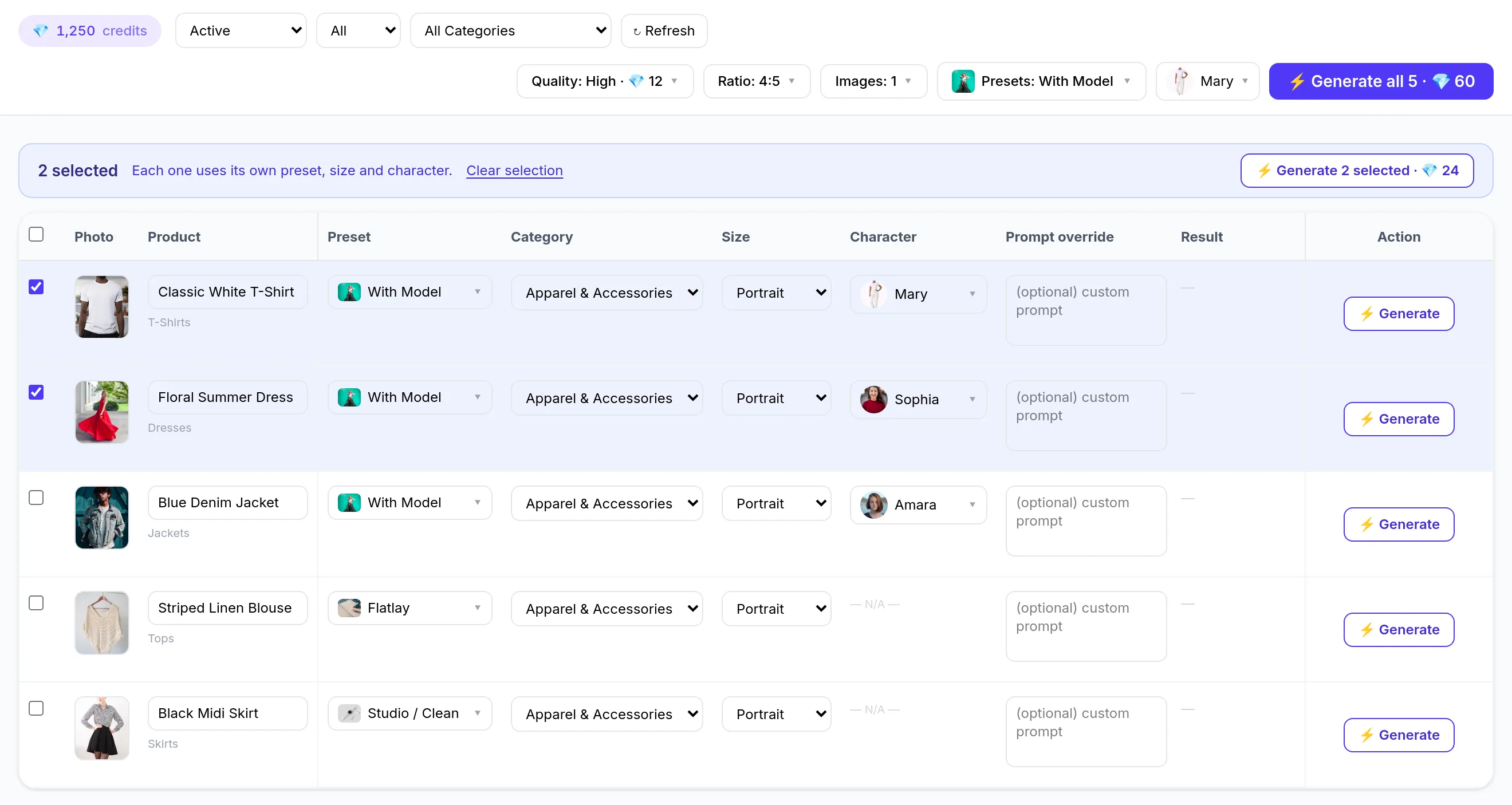
Pick a preset per product, tick the ones you want, and see the credit price before anything runs. The products and the credit balance shown are samples. Select the picture to open it full size.

How it works

See it in action

  1. Step 1: Get credits

    A new store gets 50 free credits once, to try the app. Credits you buy later are separate. The smallest pack is 100 credits for $5.00.

  2. Step 2: Pick products and a look

    The app opens on a table of your products with their photos. Narrow it with the filters, then choose a style or a shot set for each row, or one for the whole run.

  3. Step 3: Check the price, then generate

    The Generate all button shows the most a run can cost before you click. Products without a main photo are not charged.

  4. Step 4: Review and publish

    Open an image, delete the ones you do not want, and publish the rest to the product as the main image or an additional one.

What you can do with it

Bulk generation

Run many products at once, with the price shown first

Choose once in the toolbar and see the price before anything runs.

  • Generate all runs every product the filters select, up to 2,000 in one run.
  • Tick rows to run only those, each with its own preset, size and character.
  • A confirmation shows the most the run can cost. Cancel, and nothing is spent.
  • A run over several pages shows a progress bar with Stop; images already started still finish.
  • Add your own instruction to one product or to the whole run.
More about bulk runs: filters, limits and what is locked

Generate all makes images for every product the filters select, on all pages and not only the page on screen, up to 2,000 products in one run. The main Generate all button shows the most the run can cost, in credits, before you click: its label gives the count and the credit price. Once you tick rows, “Generate 10 selected” appears above the table and runs only those, each with its own preset, size and character.

Narrow the table by status, result (Done or Empty) and category. The Status filter applies to your whole store before it is split into pages. When Result, Category or a search is set, the app reads only the first 2,000 products that the Status filter lets through (fewer if reading them takes too long), so a product beyond that is not found by those filters, and the count and the pages cover only what was read. When a list is cut short, the page says how many products the filters cover. Done means the product has at least one saved image made by the app, and Empty means it has none. The table shows 25 or 50 products per page, with Previous and Next.

Before anything is charged, a confirmation shows products × images × price. For a run over several pages that is the most it can cost, because a product without a main photo is only found out when it is read; such a product is skipped and not charged, and a run that could cost more than your balance cannot start. Each image is charged when it is started, and if your credits run out part-way the run stops there. Cancel, and nothing is spent.

A run over several pages shows a progress bar with a Stop button; Stop ends the starting of new products, and images that were already started still finish. When a run ends, Show results reloads the list so the new images appear in their rows.

While rows of the table are being made (a run that fits on the page you are on, or a row’s own Generate button), paging, the filters and the page size cannot be changed. A run over several pages is not tied to the table, so you can still browse while it goes. Ticked rows and each row’s own choices belong to the page you are on and are cleared when you move to another page, even when you come back; the filters and the toolbar settings stay, and images already made are saved and show again.

A row’s own Generate and Regenerate buttons run straight away and charge at once. Their price is in the button’s tooltip, and on the button itself for a shot set.
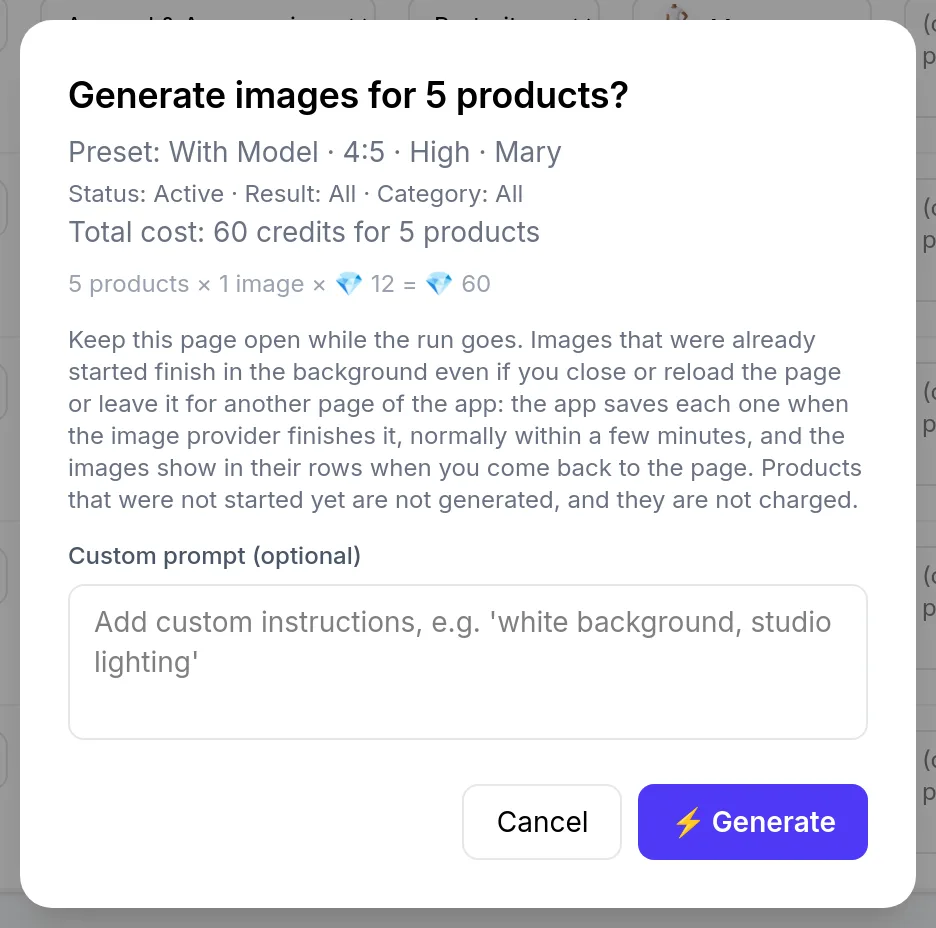
Confirmation dialog titled Generate images for 5 products, opened by the Generate all button. It lists the preset, ratio, quality and character (With Model, 4:5, High, Mary) and the filters (Status Active, Result All, Category All). It states the total cost of 60 credits for 5 products, with the breakdown 5 products times 1 image times 12 credits, a note to keep the page open while the run goes, a custom prompt box, and Cancel and Generate buttons.

Looks and shot sets

One style, or a whole set of shots per product

Choose one of nine ready-made styles, or a shot set that makes several views of one product.

  • With Model
  • Studio / Clean
  • Flatlay
  • Lifestyle / Cozy
  • Outdoor / Nature
  • Dark & Moody
  • Minimalist / Modern
  • Vibrant / Pop Art
  • In Action
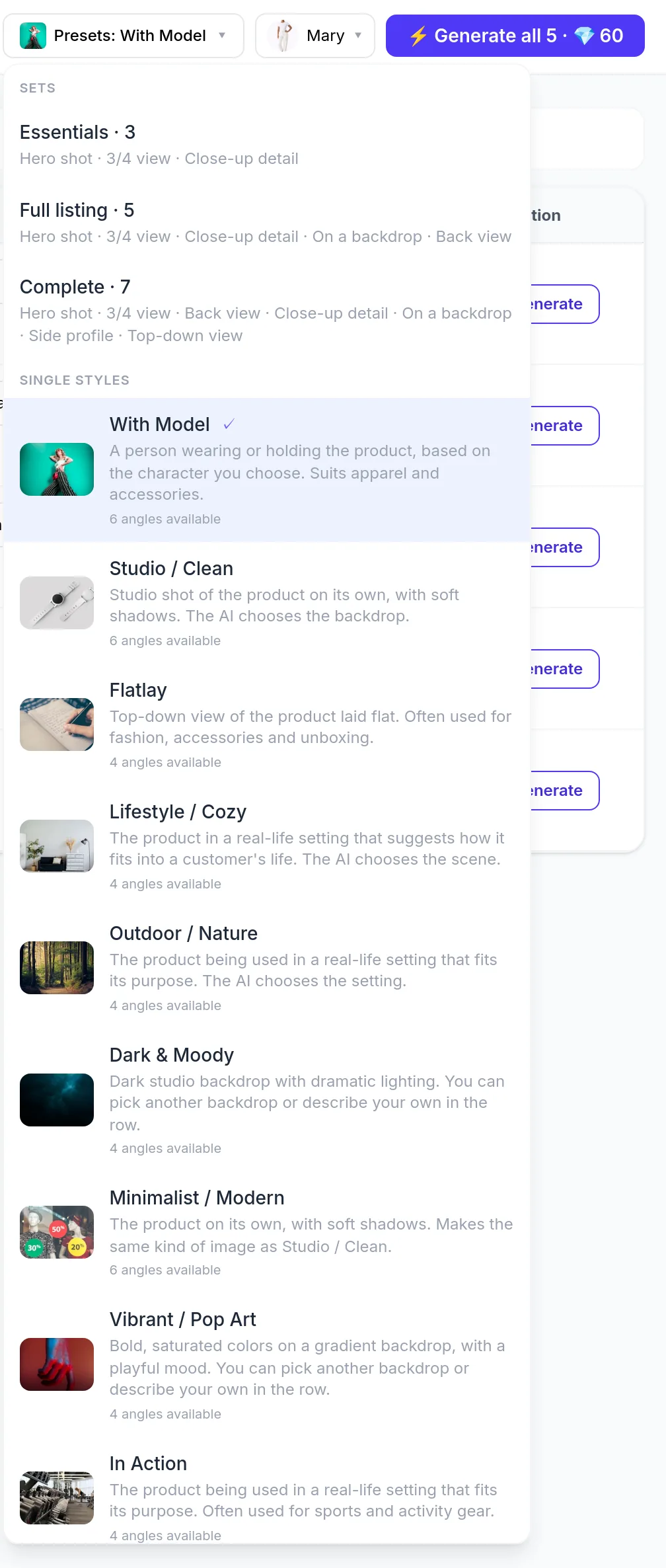
  • Rows set to Dark & Moody or Vibrant / Pop Art also let you pick a backdrop or describe your own.
Presets dropdown open, next to the character picker and the Generate all button. Under Sets: Essentials 3, Full listing 5 and Complete 7, each listing its shots. Below them, the first of the single styles, With Model.

Or pick a shot set

Essentials, Full listing and Complete make 3, 5 and 7 different views of one product, adapted to the product’s category.

  • Essentials

    3 shots

  • Full listing

    5 shots

  • Complete

    7 shots

The same set adapts to the product

Full listing, 5 images

Clothing
  • Hero on model
  • 3/4 on model
  • Full body on model
  • Morning routine scene
  • Close-up detail
Electronics
  • Hero shot
  • 3/4 view
  • Close-up detail
  • On a backdrop
  • Back view

Models

Put your product on a model

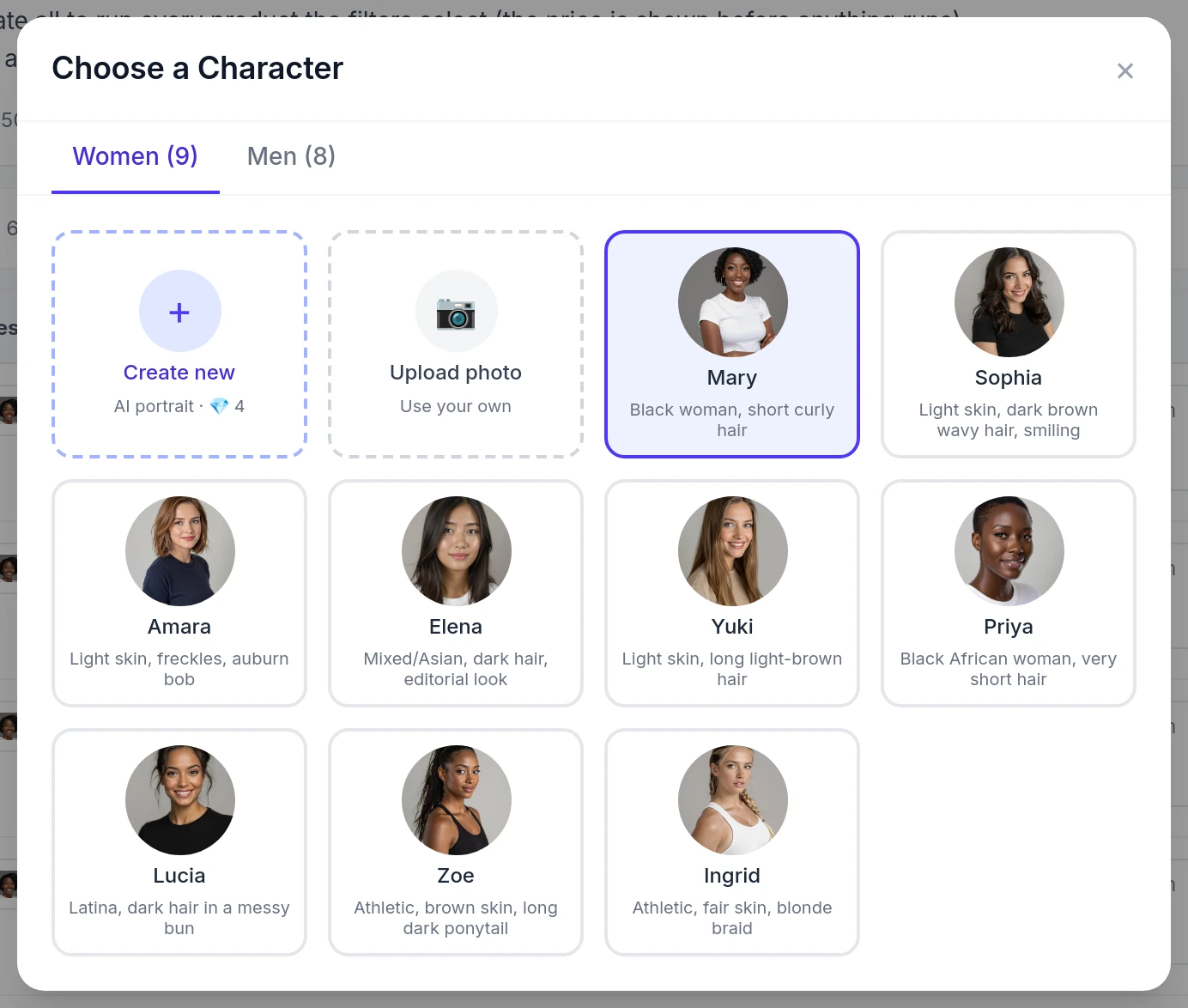
The app has 17 built-in characters, all AI-generated portraits and none a photo of a real person: nine women and eight men, including four athletic models for sporting goods. Create an AI portrait or upload a photo for anyone else.

  • Mary
  • Sophia
  • Amara
  • Elena
  • Yuki
  • Priya
  • Lucia
  • Zoe
  • Ingrid
  • Luca
  • Mateo
  • Jake
  • Callum
  • Kai
  • Kwame
  • Marcus
  • Viktor
  • Create an AI portrait by choosing gender, ethnicity, skin tone, hair and age. A portrait costs 4 credits, which are returned if it cannot be made. Uploading a photo is free.
  • Or upload a photo of your own model. Only upload photos of people who have agreed to it.
  • Characters you create or upload are listed, and can be deleted, only in your store.
  • The picture is stored at a link that anyone who has it can open.
Model shots may not reproduce the person exactly

In model shots the AI is asked to follow the chosen person’s face, hair and build, but it may not reproduce the person exactly.

Choose a Character dialog with Women and Men tabs. Tiles for Create new (AI portrait, 4 credits) and Upload photo (use your own), followed by the built-in women: Mary, Sophia, Amara, Elena, Yuki, Priya, Lucia and the athletic Zoe and Ingrid, each with an AI-generated portrait and a short description.

Quality and framing

Choose the quality, and see what each image costs

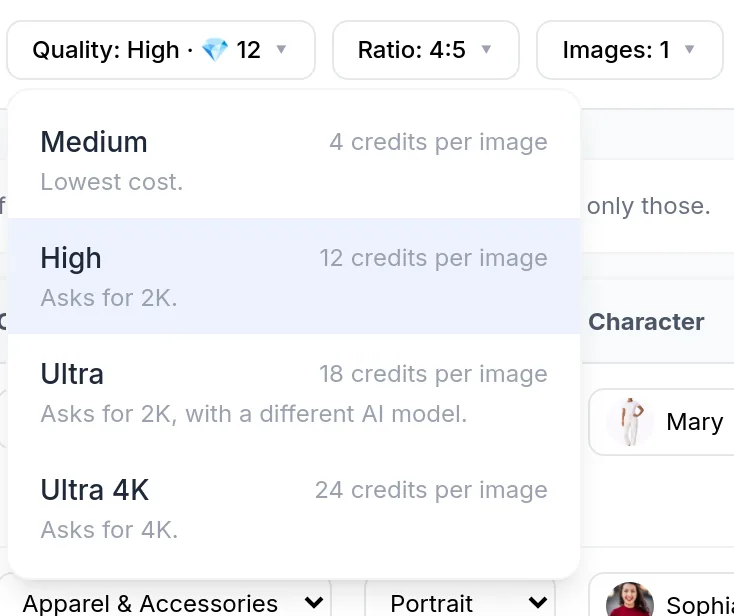
The menu shows the price next to each level, and High is the default.

Cost per image

  • Medium4 credits
  • HighDefault12 credits
  • Ultra18 credits
  • Ultra 4K24 credits
  • Choose square, portrait or landscape for each product.
  • The quality you pick applies to every image in a run.
  • Regenerate makes a new image and keeps the old one. It costs credits again.
Quality dropdown open: Medium at 4 credits per image, High at 12 (highlighted as the current choice), Ultra at 18 and Ultra 4K at 24. Each level has a one-line note: Lowest cost, Asks for 2K, Asks for 2K with a different AI model, and Asks for 4K.

Publishing

Publish the images you choose

Open an image in the gallery, delete the ones you do not want, and publish the rest to the product.

  • Nothing changes in your store until you publish.
  • Add an image as an additional image, or set it as the main image. The old main image moves down; nothing is deleted or replaced.
  • Publishing never costs credits.
  • Deleting an image in the app does not touch your store. Remove a published image from the product’s media in Shopify.
More about publishing: the main-image move, sets and alt text

If Shopify does not let the app move the new image to the first position, it stays on the product as an additional image, so check the product’s media in Shopify.

Publish one image, a whole set in order (you choose whether its first shot becomes the main image), or the latest image of each ticked product.

Images are added to the product, not to a single variant.

Alt text comes from the product title and the style and cannot be edited in the app; change it in Shopify afterwards.

Additional image

  1. MainOriginal photo
  2. Added lastNew image

Set as main image

  1. MainNew image
  2. Moved downOriginal photo
How a published image is placed in the product’s media. An illustration, not a screenshot.

Before you start

  • AI-generated images

    Output can differ from your real product. Review every image before you publish. You are responsible for what appears in your store, and for whether it needs to be disclosed as AI-generated.

  • Products, pages and the size of a run

    A run covers at most 2,000 products. When Result, Category or a search is set, the app reads only the first 2,000 products that the Status filter lets through (fewer if reading them takes too long).

    Read the full text on products, pages and the size of a run

    The Bulk Generate page lists your whole store, 25 or 50 products per page, and the Status filter (active and draft products unless you change it) narrows that list. Generate all runs on the products the filters select.

    When Result, Category or a search is set, the app reads only the first 2,000 products that the Status filter lets through (fewer if reading them takes too long), so a product beyond that is not found by those filters, and the count and the pages cover only what was read. When a list is cut short, the page says how many products the filters cover.

    A run covers at most 2,000 products. If your store has more, the table still lists the rest page by page while Result, Category and Search are not set, and you can tick rows there; the confirmation says when a run was cut short. Each product needs a main photo, the only photo used as the reference.

  • If you leave the page

    Images that were already started finish in the background even if you close or reload the page or leave it for another page of the app. Products that were not started yet are not generated, and they are not charged.

    Read the full text on leaving the page

    The Bulk Generate page shows each image as it finishes. Images that were already started finish in the background even if you close or reload the page or leave it for another page of the app: the app saves each one when the image provider finishes it, normally within a few minutes, and the images show in their rows when you come back to the page. Products that were not started yet are not generated, and they are not charged.

    If the credits of a failed image do not come back, email [email protected].

    Keep the Bulk Generate page open while a run goes, because the page starts the products a few at a time. If you open another page of the app during a run, the app asks before you leave. The app’s own estimate is about 45 seconds per image. Real time varies.

  • Your data

    To make an image, the app sends the product’s main photo and its text details (title, description, tags and similar) to third-party AI services. Generated images are stored at a link that anyone who has it can open, until you delete them in the app or until 14 days after you uninstall it. The app asks Shopify for product read and write access only, not for customer or order data. See the privacy policy.

Prepaid credits, no subscription

You pay in credits for each image you generate, and you buy credits in the app. Each purchase is a one-time charge in US dollars through Shopify Billing.

  • $0.05

    One credit at list price. Larger purchases get a volume discount.

  • 100 credits

    The smallest purchase, $5.00: enough for 8 High-quality images or 25 Medium.

  • 50 credits

    A new store gets 50 free credits once, to try the app. Credits you buy later are separate.

What an image, or a whole set, costs

  • Medium

    Lowest cost. Does not ask for a specific resolution.

    One image

    4 credits

    $0.20

    • Essentials3 images12 credits$0.60
    • Full listing5 images20 credits$1.00
    • Complete7 images28 credits$1.40
  • High

    Default

    Asks for 2K.

    One image

    12 credits

    $0.60

    • Essentials3 images36 credits$1.80
    • Full listing5 images60 credits$3.00
    • Complete7 images84 credits$4.20
  • Ultra

    Asks for 2K, with a different AI model.

    One image

    18 credits

    $0.90

    • Essentials3 images54 credits$2.70
    • Full listing5 images90 credits$4.50
    • Complete7 images126 credits$6.30
  • Ultra 4K

    Asks for 4K.

    One image

    24 credits

    $1.20

    • Essentials3 images72 credits$3.60
    • Full listing5 images120 credits$6.00
    • Complete7 images168 credits$8.40

List prices. With a 150,000-credit pack (75% off), a High image costs $0.15. The app does not promise exact pixel sizes.

Credit packs, and the images each one buys

Swipe sideways to see every column.

CreditsYou payDiscountMediumimagesHighimagesUltraimagesUltra 4Kimages
100$5.00None25854
1,000$47.505%250835541
5,000$213.5014.6%1,250416277208
10,000$368.0026.4%2,500833555416
20,000$500.0050%5,0001,6661,111833
50,000$975.0061%12,5004,1662,7772,083
100,000$1,500.0070%25,0008,3335,5554,166
150,000$1,875.0075%37,50012,5008,3336,250

The more credits you buy, the bigger the discount: it starts at 5% for 1,000 credits and reaches 75% for 150,000, a price for wholesale buyers. These packs are examples: the Credits page offers more pack sizes and shows the exact price before you pay.

Example runs

What a run costs, before any discount.

  • 1 product, Essentials set (3 images), Medium quality12 credits$0.60
  • 1 product, Full listing set (5 images), High quality60 credits$3.00
  • 10 products, 1 image each, High quality120 credits$6.00
  • 25 products, 1 image each, Medium quality100 credits$5.00

Good to know about credits

  • No subscription and no monthly minimum.
  • If the image provider reports that an image failed, or the image is still not made and saved after 15 minutes, the app cancels it and returns its credits to your balance, and the Credits page shows a refund. A finished image you do not like is not refunded.
  • Unused credits have no expiry date while the app is installed.
  • If you uninstall, unused credits are not refunded (see the terms); they stay on your store's record and are there again if you reinstall.
  • Shopify processes the payment, and we never see your card details.
  • Prices can change; the Credits page in the app shows the current ones. See the terms for refunds.
What the Credits page shows

The Credits page shows your balance and your 100 most recent credit transactions, including purchases, uses and refunds.

Common questions

Read the full FAQ
  • Do I need to upload anything?

    No. The app reads the main photo of each product already in your store. Uploading is only for your own model photo.

  • Will the image match my actual product?

    Your product photo is the reference, and the AI is asked to keep the product's design, colors and branding. Output can still differ, so review every image before you publish.

  • What happens if a generation fails?

    If the image provider reports that an image failed, or the image is still not made and saved after 15 minutes, the app cancels it and returns its credits to your balance, and the Credits page shows a refund. A finished image you do not like is not refunded, and Regenerate costs credits again.

  • Does publishing replace my product photo?

    Only if you choose Set as main image, and then the old photo moves down instead of being deleted. Otherwise the image is added as an additional image.

Start with one product

A first purchase of 100 credits ($5.00) covers 8 High-quality images, or 25 Medium. The Generate all and Generate selected buttons show the price of the run before you click. Nothing is published until you click.