Image quality in Bulk Look AI: High 2K and Ultra 4K, credits, and product photos for Google Merchant
One in-app job: the quality menu, Medium through Ultra 4K credits, max price before you run, then review and publish to Shopify only when you approve.
From 31 January 2027, Google Merchant will require at least 500×500 pixels for main and additional product images in the feed. Warnings for smaller files begin 14 April 2026. Google recommends about 1500×1500 pixels or larger for stronger performance in shopping surfaces. I ran into the pixel question early: Bulk Look AI does not promise exact output size, so I pick a credit tier, read the max cost before generate, and only publish what I checked against the catalog.
Install from the Shopify App Store. Quality tier detail lives on aibulkimages.com. For a UI walkthrough, see the YouTube demo.
What Google expects vs what the app states
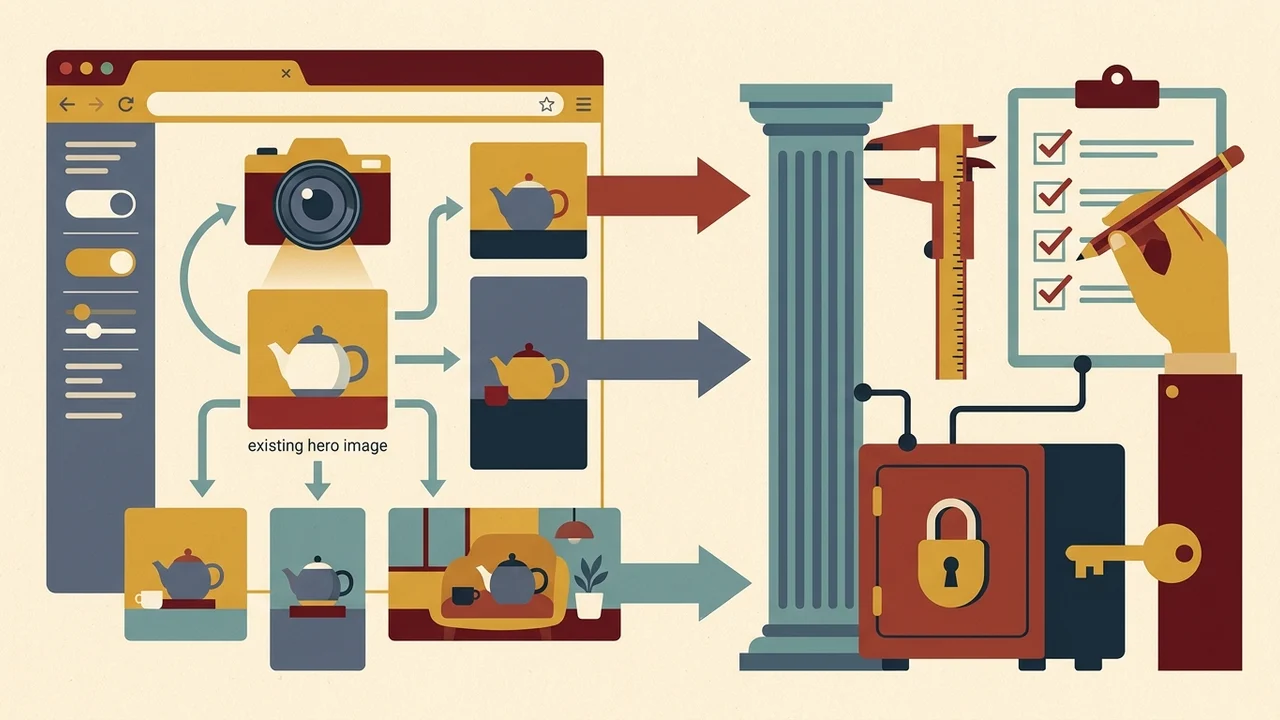
Bulk Look AI reads your product’s existing hero image and creates new shots in a style you choose (for example Studio / Clean or Lifestyle / Cozy) and a frame format: square, portrait, or landscape. Merchant Center cares about pixel size and whether the image truthfully represents the product. The app does not promise exact output width and height. In the quality menu, Medium does not ask for a specific resolution; High and Ultra say the pipeline is asked for 2K; Ultra 4K is asked for 4K. After publish, I open the file in Shopify and confirm I am comfortable with the 500×500 minimum and the 1500×1500+ recommendation. Same topic: An AI frame set for.
| Topic | Google / Merchant Center | Bulk Look AI app |
|---|---|---|
| Output dimensions | Minimum 500×500; 1500×1500+ recommended (verified in Shopify after publish) | Does not promise exact output width and height |
| Quality settings | Cares about pixel size | Medium: no specific resolution; High and Ultra: pipeline asked for 2K; Ultra 4K: asked for 4K |
| What the image must do | Truthfully represent the product | Reads existing hero image; creates new shots in chosen style and frame format (square, portrait, or landscape) |
Output can differ from the real product. I treat review before publish as non-optional. Whether you label images as AI-generated is your call. Google’s product data guidance discusses AI metadata for merchant feeds. Public Bulk Look AI pages reviewed for this article do not state how export handles those tags, so feed compliance sits with your checks alongside visual accuracy.
Step 1: Open the quality menu
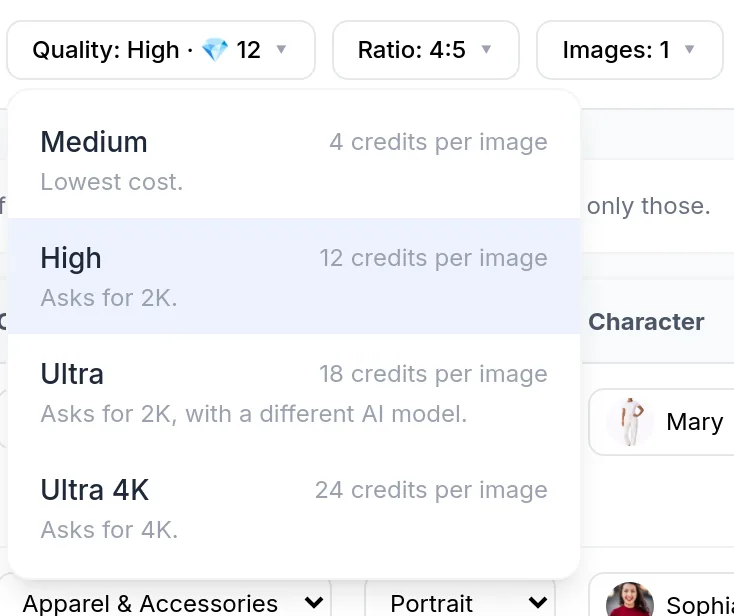
In the products table, select items that already have a hero image (products without a main photo are not charged and are skipped). Before a bulk run, open the quality menu and compare four tiers per image:
| Quality | Credits per image | App description |
|---|---|---|
| Medium | 4 ($0.20 at the $0.05/credit list rate) | does not ask for a specific resolution |
| High (default) | 12 ($0.60) | asks for 2K |
| Ultra | 18 ($0.90) | asks for 2K (different pipeline model) |
| Ultra 4K | 24 ($1.20) | asks for 4K |
You pay prepaid credits, no subscription. New stores get 50 free credits once; the smallest pack is 100 credits for $5.00. Larger packs cost less per credit (up to 75% off on the largest). One run can cover up to 2000 products.
Step 2: Frame set and max-price confirmation
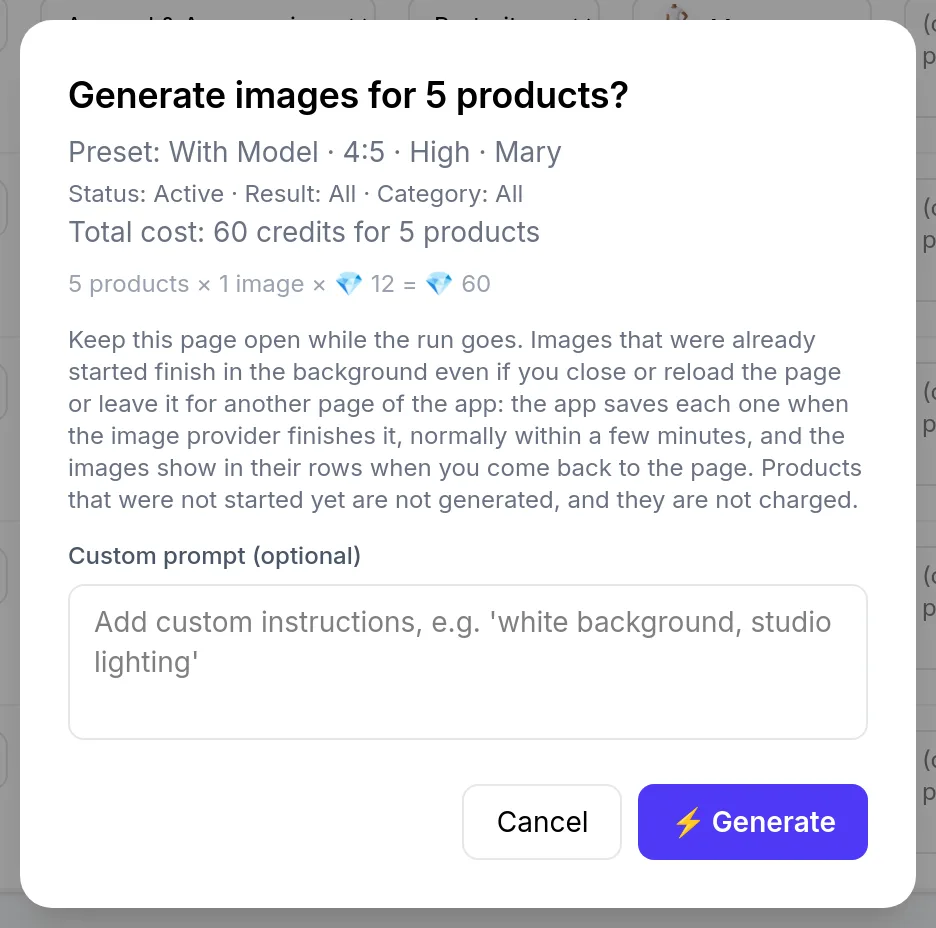
Pick a shot set (Essentials: 3, Full listing: 5, or Complete: 7) and a style. On the generate confirmation screen, the app shows the maximum credit cost for the run (products × shots × price for your quality). I do not start until I see that ceiling.
For model shots, the app offers 17 built-in AI characters or your own model photo for free when the person consents; faces may not match exactly. A custom AI portrait costs 4 credits, refunded if the portrait fails.
Step 3: Review and publish to Shopify
Nothing reaches your store until you publish. Publishing costs no credits. You can add a new image or set it as the hero; the previous hero moves down and is not deleted. Alt text is built from the product title and style; edit it in Shopify. Images attach to the product, not a single variant. A closer look: Publish AI product images to.
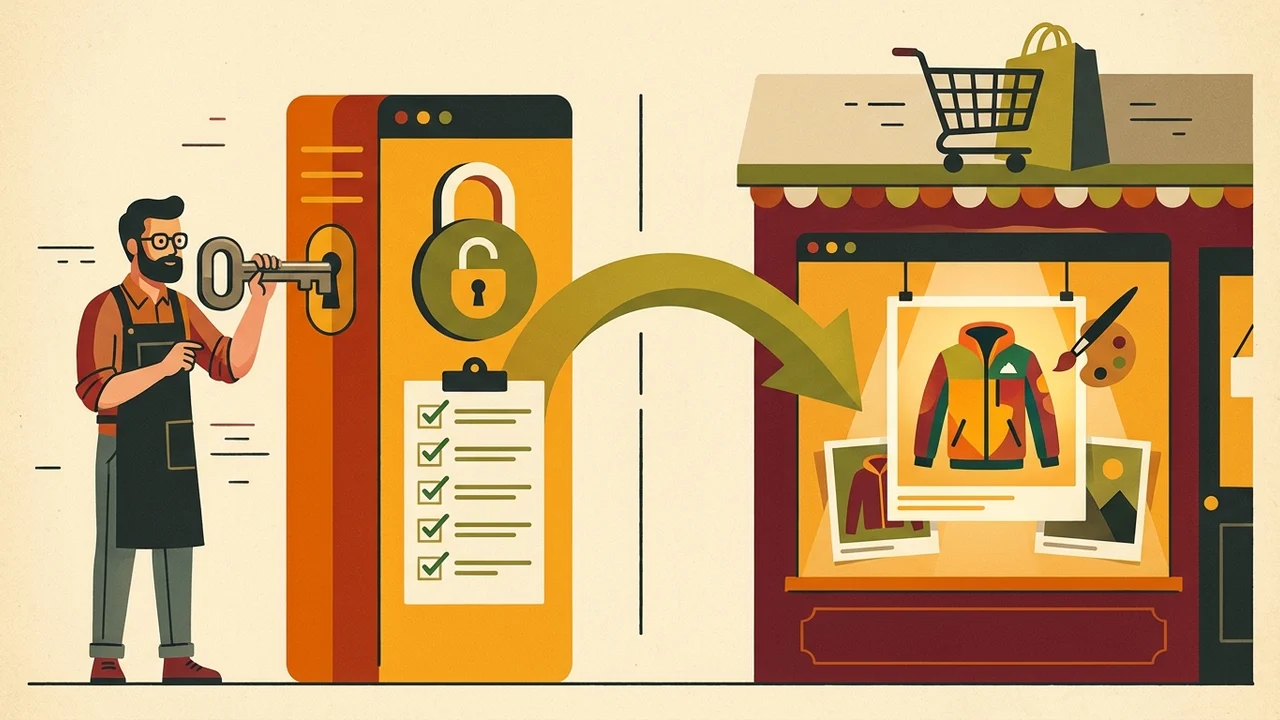
Before you lean on images in Merchant:
- Confirm the product on the image matches the live SKU (shape, color, details).
- Check resolution in Shopify after publish if you care about 500×500 and 1500×1500+.
- Decide which frames from the 3, 5, or 7 set become
image_linkandadditional_image_linkin the feed.
Practical takeaway
- For the 2027 merchant minimum, I skip Medium-only runs when I want an explicit higher-resolution request in the pipeline: High (2K) is the default.
- Ultra 4K fits hero SKUs where 24 credits per frame is acceptable and I still verify pixels after export.
- Studio / Clean across the catalog keeps visuals consistent in the feed, but it does not replace manual review. A closer look: One Studio / Clean look.
The single job I rehearse: quality → price confirmation → generate from the current hero → review → publish. That lines up Bulk Look AI’s credit model with Google Merchant rules without assuming exact pixel dimensions on export.